Mass import Gliffy diagrams
As a Confluence administrator, you can convert all of the Gliffy diagrams in your Confluence Cloud site to draw.io diagrams in the Gliffy migration tab of the draw.io Configuration.
The Gliffy migration tab has two tabs:
- Dry run: Find the spaces that contain Gliffy diagrams, test the conversion of the diagrams in the spaces you choose, and review the results. The Read-only tag shows that a dry run doesn't change any page or diagram. You can run it as often as you like.
- Import: Convert the diagrams from the latest dry run, and replace the Gliffy macros on their pages with draw.io macros. The Writes to pages tag shows that the import changes your pages.
Before you start
- The diagrams are converted in your browser. You can close the browser tab at any time - the dry run or import stops at its last checkpoint. To continue, open the Gliffy migration tab again and click Resume from checkpoint. Diagrams that were already imported are not imported again.
- Run the scan, the dry run and the import with an administrator account that can view and edit every page with a Gliffy diagram. The diagrams on pages that this account can't edit stay Gliffy diagrams. To continue a paused dry run or import, sign in with the account that started it.
- The migration keeps its progress, logs and reports as attachments of a page called Gliffy migration in the draw.io Configuration space (
DRAWIOCONFIG). If the tab says that this space was not found, follow the instructions in the message, then reload the page. - The time the dry run and the import take depends on how many Gliffy diagrams are in your site.
Open the Gliffy migration tab
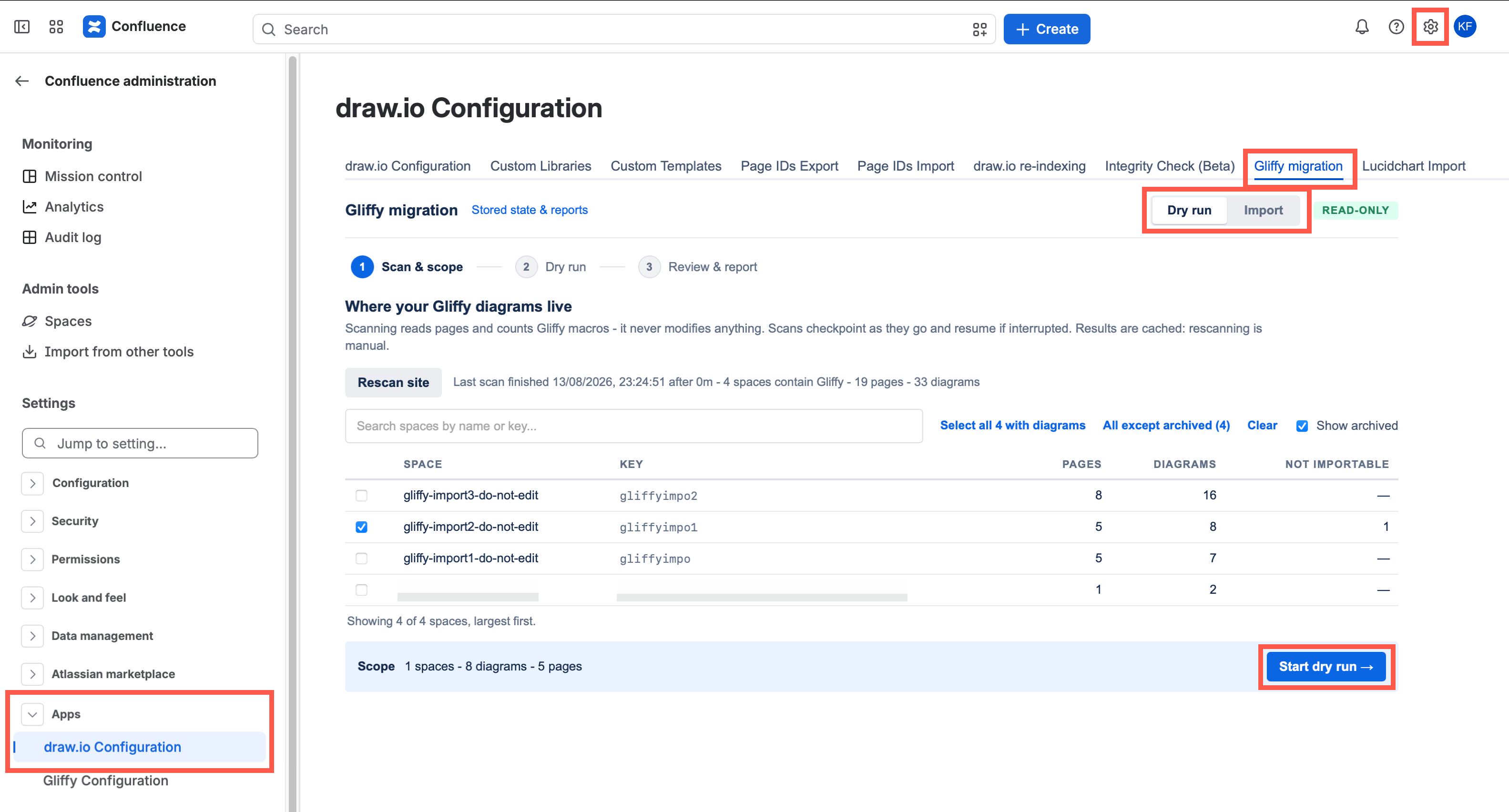
- In Confluence, click Settings (the gear icon), then select draw.io Configuration under Apps in the left panel.
- Select the Gliffy migration tab. The Dry run tab will be selected, with the Read-only tag next to it.
Step 1: Scan your site and choose the spaces
- Click Scan site. The scan reads your pages and counts the Gliffy macros in each space. It doesn't change anything.
Note: To pause the scan, click Pause. Click Resume scan to continue it from where it stopped. - When the scan has finished, the table lists every space that contains Gliffy diagrams, largest first. Not importable counts the Gliffy drafts that are stored on gliffy.com - they have no attachment that draw.io can convert.
- Select the spaces you want to test. Search for a space by name or key, or use the links above the table to select all spaces with diagrams, all spaces except archived ones, or none (Clear). Clear Show archived to hide the archived spaces. The Scope bar shows how many spaces, diagrams and pages you have selected.
- Click Start dry run → to go to the next step.
The scan results are kept until you scan again. If pages have changed since the last scan, click Rescan site. A rescan keeps your dry run results and review ratings.
Step 2: Do a dry run
- Click Start dry run. Every diagram in the selected spaces is downloaded and converted in your browser, and draw.io checks that you can edit each page. Nothing is written to Confluence.
- Wait for the Dry run complete - nothing was changed message. The counts show how many diagrams converted cleanly, converted with warnings, were imported before, failed to convert, or are on pages that you can't edit (write-blocked). Problems are grouped under the progress panel.
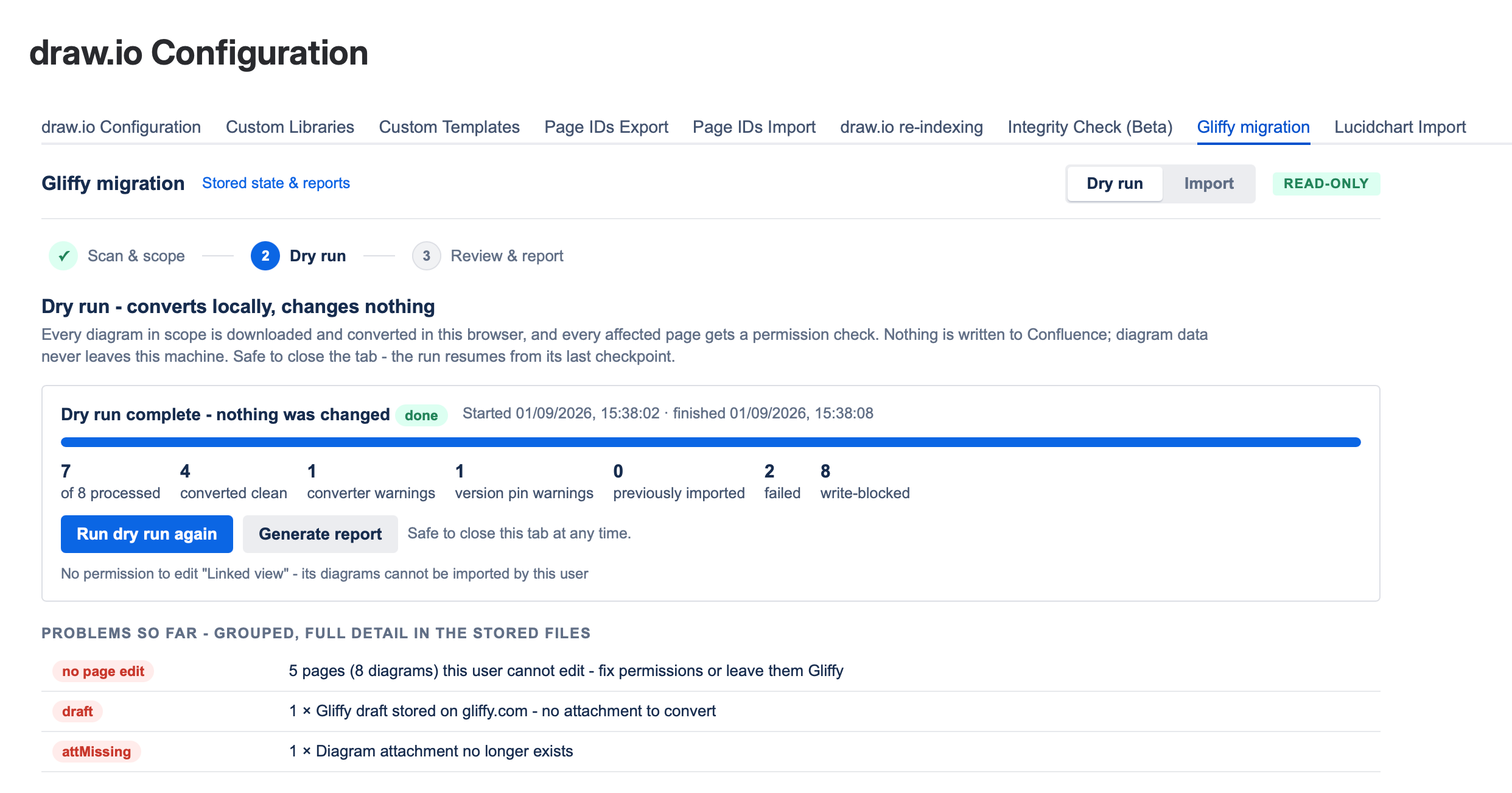
- Pages listed as no page edit can't be edited by your account, so their diagrams will stay Gliffy diagrams. To import them, give the account edit permission for those pages, then click Run dry run again.
To download a report of the dry run, click Generate report.
Step 3: Review a sample of the conversions
- Click Review & report. draw.io selects a sample of the converted diagrams: diagrams with converter warnings first, then a random selection across the spaces. To change the sample size, click 50, 1%, 5% or 10%, or enter a Custom % and click Apply.
- To see only some of the diagrams, select Unreviewed (diagrams in the sample you haven't rated yet), Flagged (diagrams in the sample with converter warnings) or Failed (diagrams that failed to convert) instead of Sample.
- Compare the two images. On the left is the preview image that Gliffy stored on the page. On the right is the converted draw.io diagram, as the page will show it after the import. To show both in the same place and flip between them, click A/B or press
X.
Note: If Gliffy didn't store a preview image, compare the conversion with the diagram on its page. - Rate the conversion as a Match (press
1), as having Minor differences (press2), or as having Major differences (press3). Add a note if you want to include it in the report. Press the left and right arrow keys to move between the diagrams. Your ratings are saved as you go.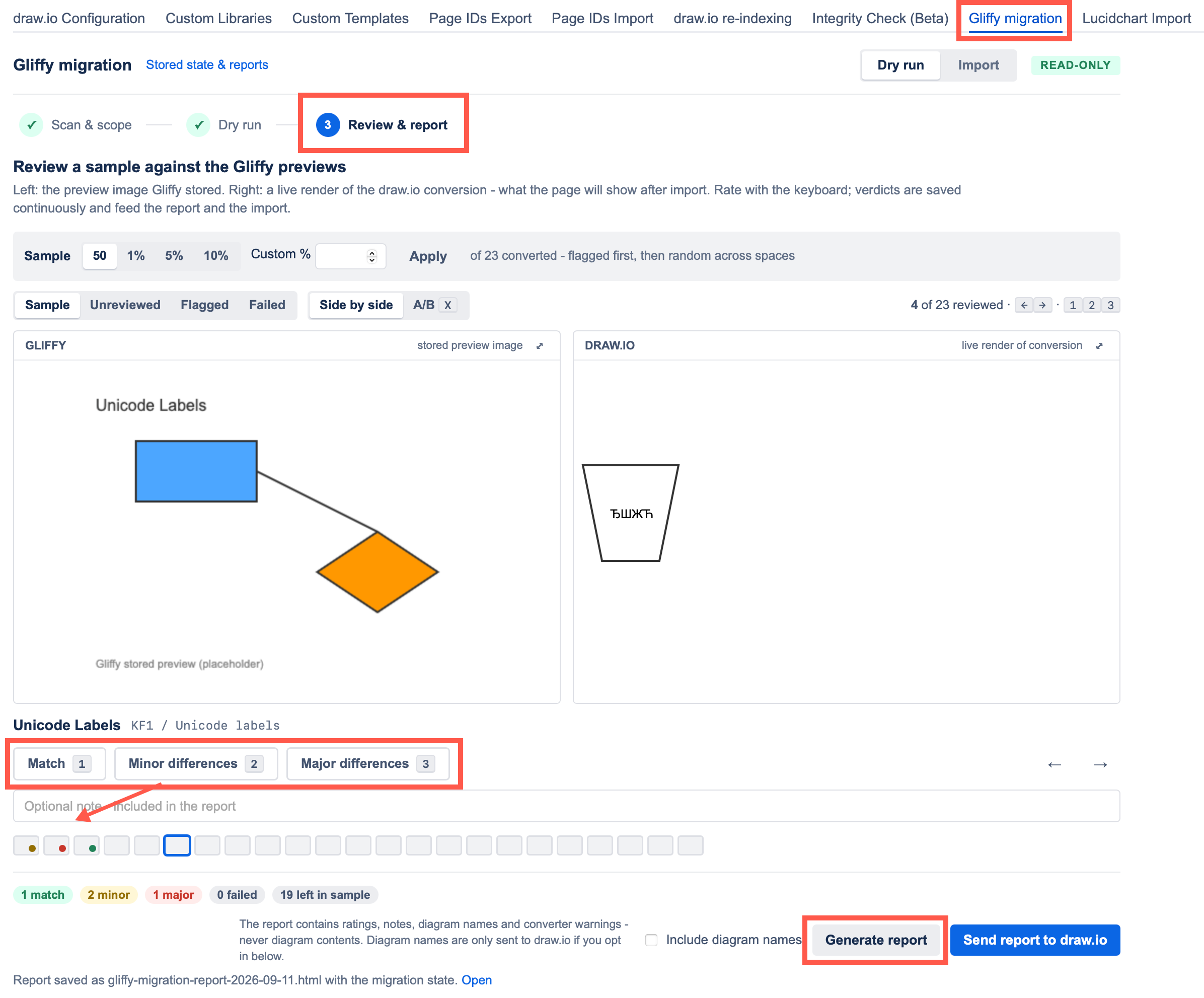
- Click Generate report. The report will be saved with the migration state and downloaded to your computer.
- If our support team has asked for the report, click Send report to draw.io. Quote the reference it shows when you contact us.
Note: The report that is sent contains counts, failure reasons and ratings, never the diagram contents. The names of diagrams and pages, and your notes, are only sent when you select Include diagram names.
Step 4: Import the Gliffy diagrams
The import converts the diagrams from the latest dry run. No Gliffy diagram data is changed or deleted. Each Gliffy macro is replaced with a draw.io Diagram macro, a .drawio attachment is added for each diagram, and the page is saved as a new page version.
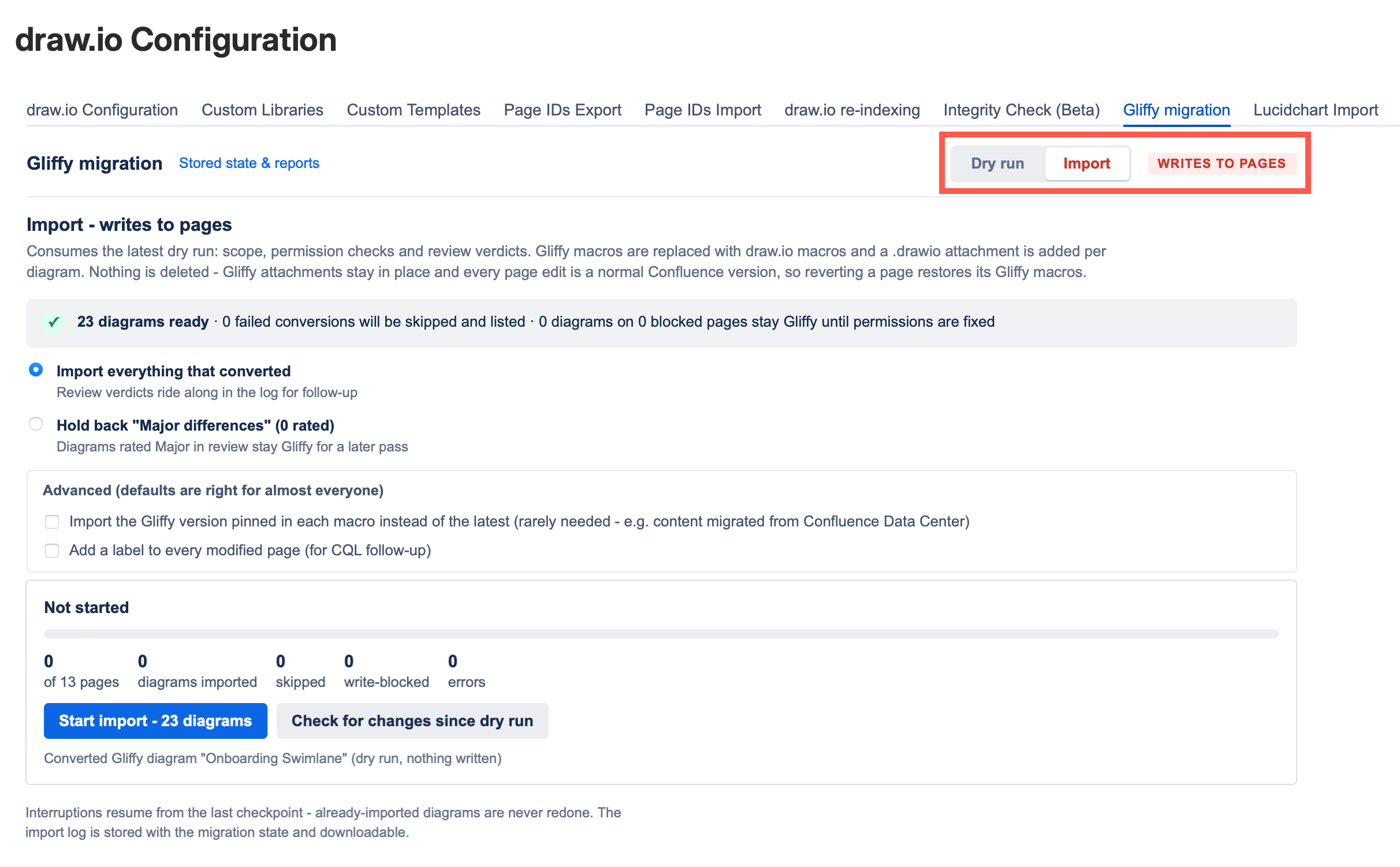
- Select the Import tab. The Writes to pages tag will appear next to it. The tab shows how many diagrams are ready to import, how many failed conversions will be skipped, and how many diagrams are on pages that you can't edit.
Note: You can only start the import after a dry run has completed. - If the dry run finished a day or more ago, click Check for changes since dry run. draw.io counts the pages that changed or were deleted since the dry run. Changed pages are checked again during the import. If more than 10% of the pages changed, do a new dry run first.
- Choose which diagrams to import:
- Import everything that converted: Imports every diagram that converted, whatever you rated it. The ratings are recorded in the log.
- Hold back "Major differences": The diagrams you rated as having Major differences stay Gliffy diagrams, so you can deal with them later.
- Optionally, click Advanced. The defaults are right for almost everyone.
- Import the Gliffy version pinned in each macro instead of the latest: Choose this only when pages show an older version of their Gliffy diagram, for example after a migration from Confluence Data Center. When you change this option, the dry run, the ratings and the import state are discarded, and you need to do a new dry run.
- Add a label to every modified page: Adds the label
drawio-gliffy-importedto every page the import changes. Find these pages later with the CQL searchlabel = "drawio-gliffy-imported".
- Click Start import and confirm. The button shows how many diagrams will be imported.
- Wait for the Import finished message. The summary shows how many diagrams were imported, held back, skipped and blocked, and how many errors there were. A report of the import is saved with the migration state.
Users will see the diagram on the page just as before, only now it is a draw.io diagram instead of a Gliffy diagram.
To import the diagrams that you held back, select Import everything that converted, then click Run another import. If you fixed page permissions or Gliffy diagrams after the import, do a new dry run first. Diagrams that were already imported are not imported again.
Note: Don't delete the Gliffy files attached to the Confluence pages - they are needed for the page version history.
Find the logs and reports
- Click Stored state & reports at the top of the Gliffy migration tab. The Gliffy migration page in the draw.io Configuration space will open.
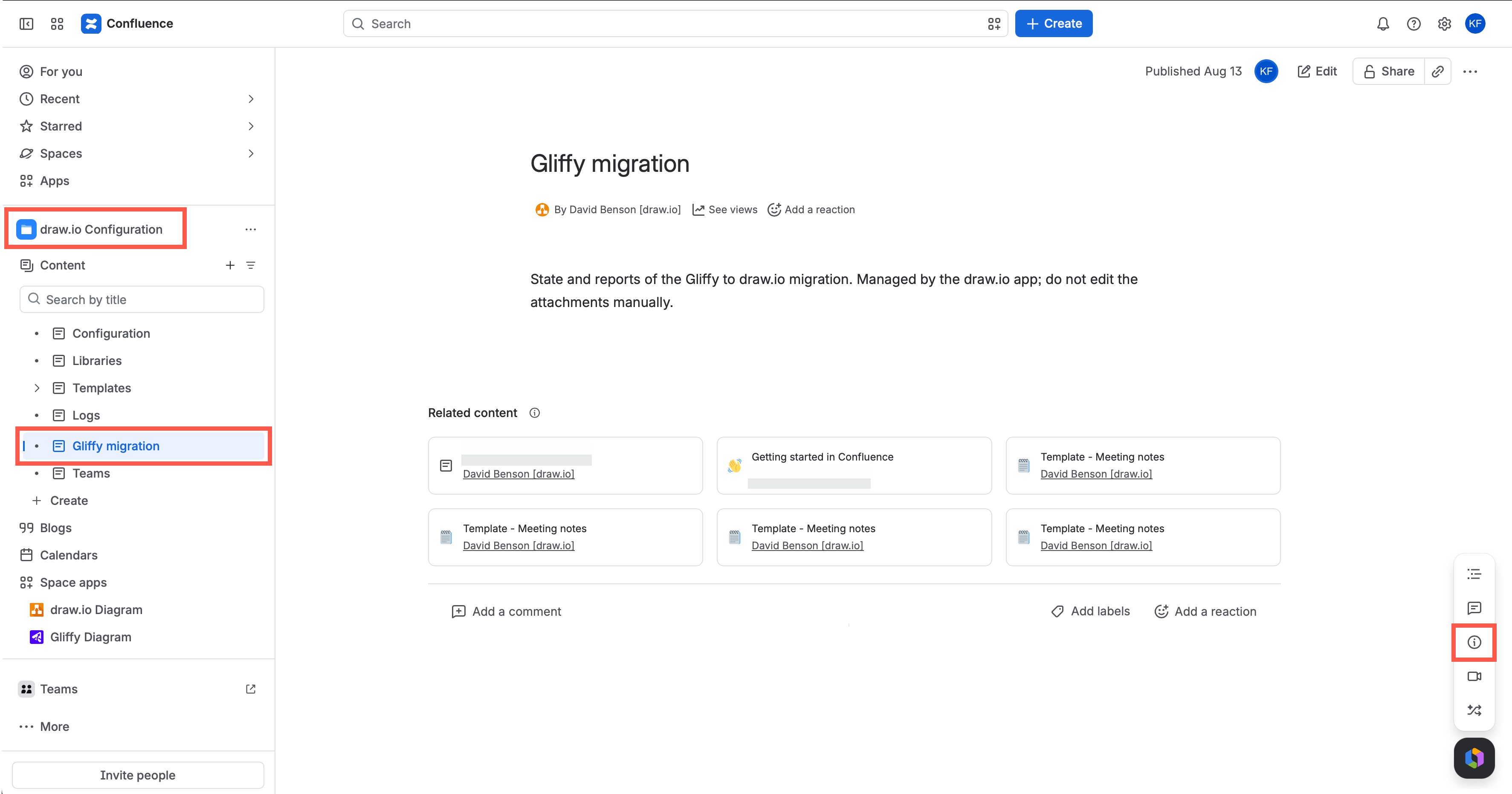
- Click the i (Show details) icon in the lower right of the page, then click the Attachments link.
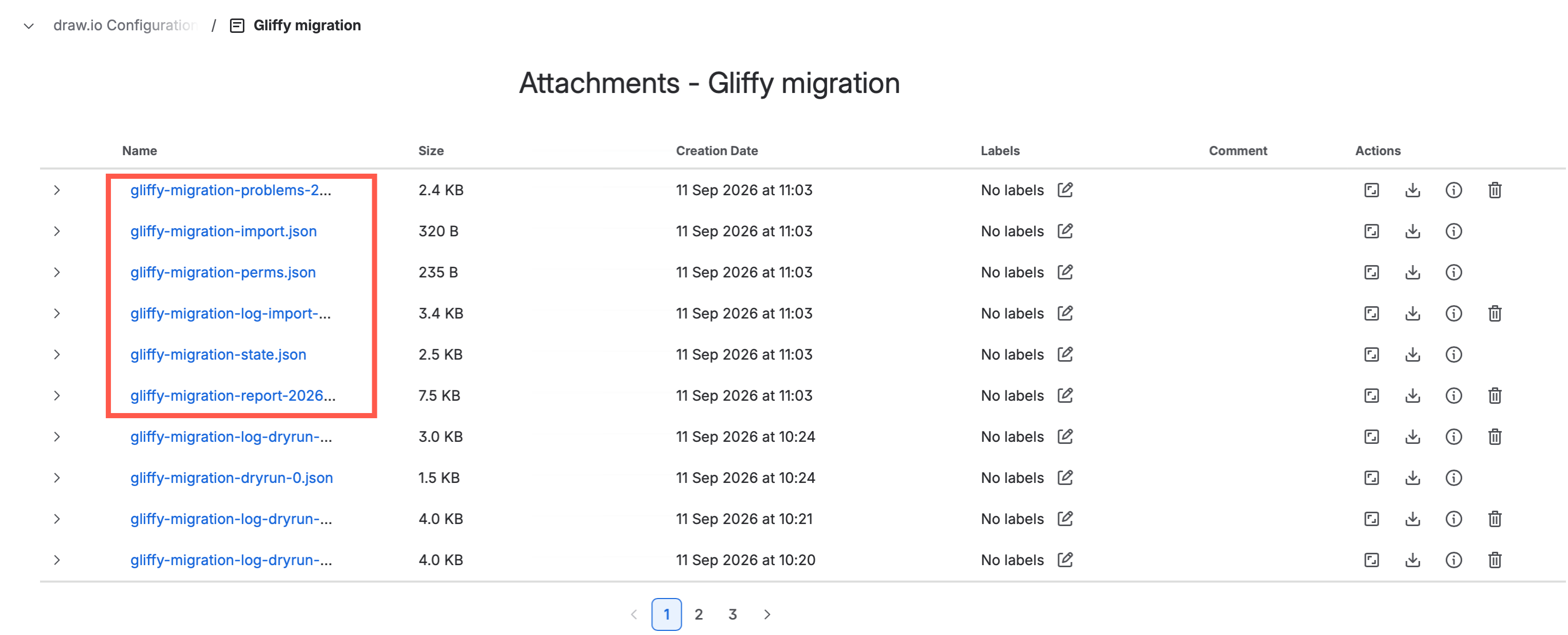
These files are the most useful:
gliffy-migration-report-year-month-day.html: The full report, with links to the pages that have problems. It is created when you click Generate report and after each import.gliffy-migration-problems-year-month-day.csv: The pages you can't edit, the diagrams that failed to convert, the diagrams you rated as having Minor differences or Major differences, and the result for every diagram.gliffy-migration-log-dryrun-…andgliffy-migration-log-import-…: The log of each dry run and each import.gliffy-migration-perms.json: The pages that you can't edit.
The other gliffy-migration-… files hold the migration state. Don't edit or delete them.
Note: The original Gliffy attachment on the page is still there and unchanged. To restore the Gliffy diagram, restore an earlier version of the Confluence page.
Gliffy mass import FAQs
When to perform the import
Perform the conversion outside of your company's normal usage hours of the Confluence site. It's best to carry out the whole operation when few changes are being made to pages containing diagrams.
We recommend that after you have reviewed and resolved all identified conversion issues, you remove the Gliffy licence so that users do not start editing Gliffy diagrams while the import is running. Without a licence, the Gliffy diagrams are effectively read-only. Please notify your users in advance.
Diagram backups
draw.io creates a new page version of every page that contains a Gliffy diagram it imports. You can always restore pages to their previous versions as no Gliffy data is deleted.
Uninstalling Gliffy
Most administrators uninstall the Gliffy app after the migration, so that everyone uses one diagram editor. If Gliffy is already uninstalled, the mass import still works, as the original diagram files are still attached to their pages.
It's best to uninstall Gliffy after the mass import is completed and after you have checked the result.
Permissions
Make sure the administrator who runs the dry run and the import can edit all spaces in your Confluence Cloud site. If no such user exists, give an administrator these permissions for the duration of the migration.
Missing permissions are the most common cause of HTTP 403 and 404 errors.
Troubleshooting
Always do the dry run and test the mass import on a test site with a copy of your production data first. If you have problems with the mass import, email [email protected] and attach the generated report, or click Send report to draw.io and include the reference in your email.