Keyboard shortcuts
Use the following keyboard shortcuts to work more efficiently with our draw.io editor.

View and print these keyboard shortcuts
Other keyboard layouts: Shortcuts use the character that is printed on the key first, so on layouts such as AZERTY or Dvorak, Ctrl+Z is the key labelled Z. If no shortcut uses that character, the key in the same position on a US keyboard is used. For example, on a German keyboard, Ctrl+Shift+Ü makes the font smaller like Ctrl+Shift+[ on a US keyboard. Shortcuts are ignored while you type with an input method editor (IME). Characters that you type with AltGr and a letter key, such as @ with AltGr+V on a Hungarian keyboard, don't run shortcuts either. On Windows, if AltGr and a letter type no character on your layout, they run the Ctrl+Alt shortcut of that letter.
Modifier shortcuts
There are many modifier shortcuts using both mouse and keyboard that make diagramming eaiser in draw.io, such as when you hold Alt + Ctrl + Shift and drag the mouse to insert blank space in your diagram and shift nearby existing shapes.
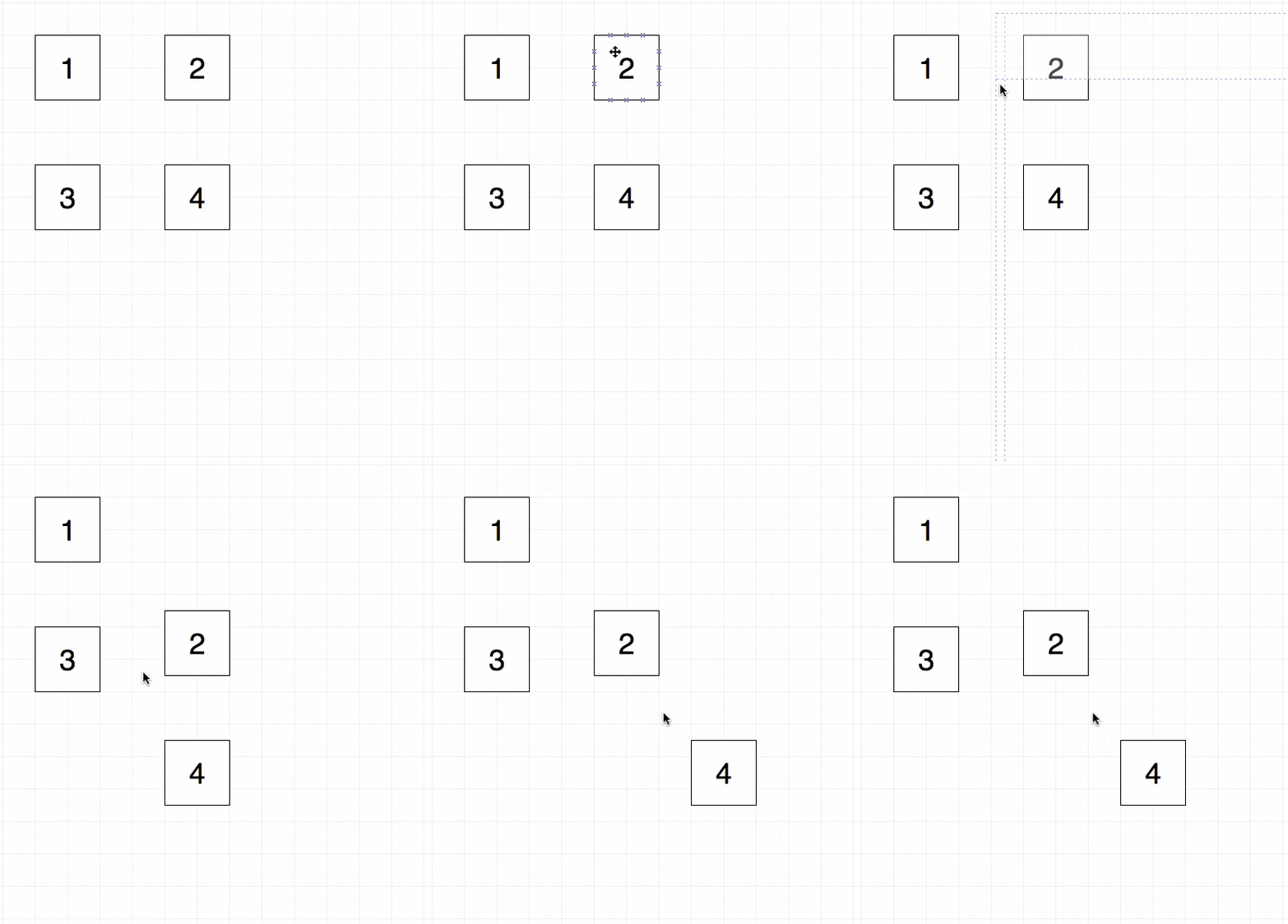
Table shortcuts
Table shapes have many shortcuts to quickly add, delete and duplicate rows.
Detailed shortcut information
- Double click on the drawing canvas to add shapes quickly.
- Select shapes and deselect shapes.
- Clone and connect a shape.
- Overlap shapes on containers such as container table cells, container shapes and grouped shapes.
- Move remote selected shapes even if they are not directly under the mouse cursor.
- Displace or move an entire area of your diagram with guidelines that show you how far it is being moved on the drawing canvas.