Label connectors
Connectors can have multiple labels - as many as you need.
Add and edit connector labels
Add a label: Double click on the connector at the location where you want to add a label. Alternatively, drag a Text shape from the Shapes panel and drop it onto a connector to add it as a label at that position.
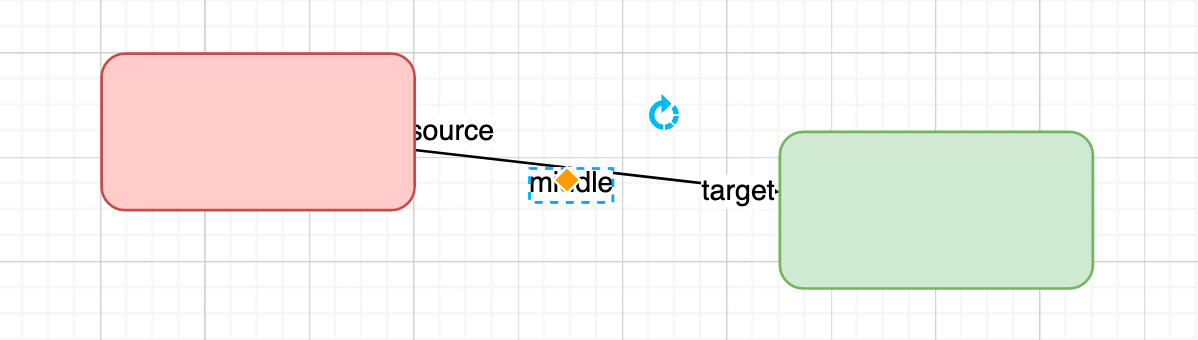
Edit a label: Double click on the text to edit the label.
Move a connector label
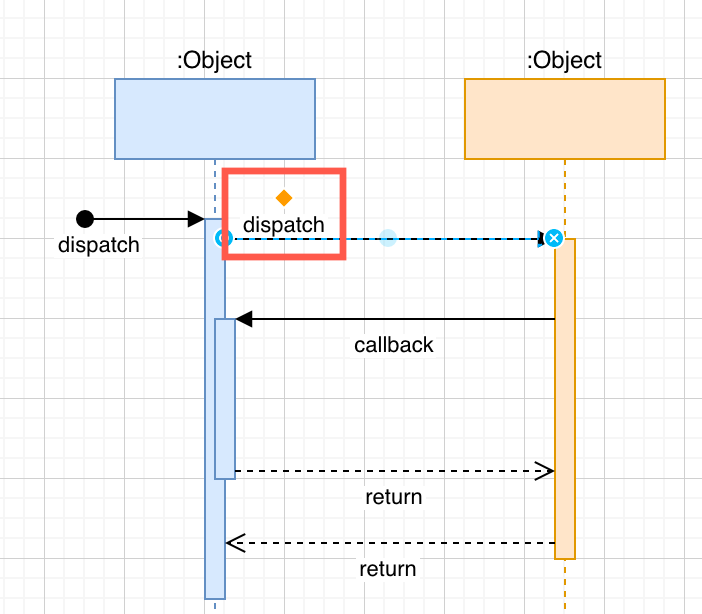
These labels will move with the connector as you move the shapes around on the drawing canvas, but you can also drag them to another location.
To manually change a label's position, select the label by clicking on it, then drag the diamond grab handle to a new position.
Rotate a connector label
Select the label on a connector, and use the rotate grab handle to rotate the text.
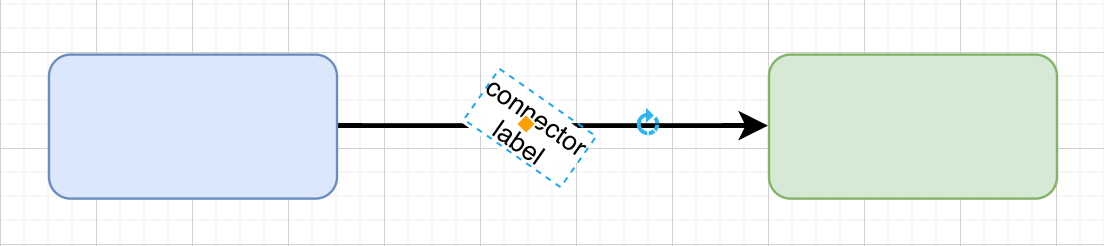
Tip: In some shapes, you can change the writing direction of the labels from horizontal to vertical.
Copy and paste a connector label
Font styles, font size, and label background settings will be copied along with the text.
- Select a label on a connector.
- Copy it with
Ctrl+Con Windows,Cmd+Con macOS. - Move the mouse cursor over the connector where you want the new label.
- Paste it with
Ctrl+Von Windows,Cmd+Von macOS.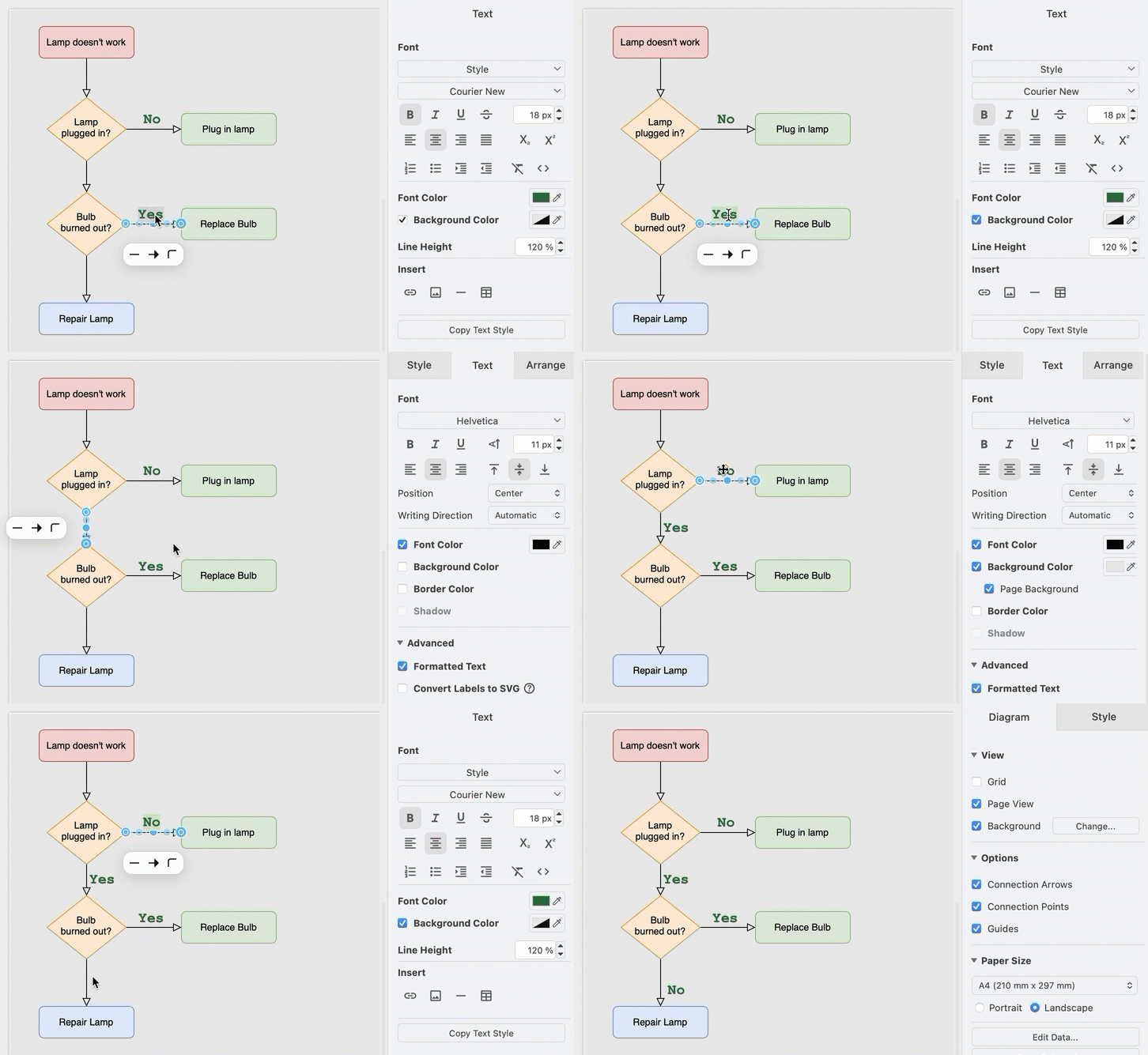
The label will be pasted at the mouse cursor position on the selected connector. If you have moved the cursor away from that connector, it is pasted with a small offset from the original label position.
Format and style the text
Use the Text tab in the format panel to change the style of a connector label.
You can add line breaks in connector labels, use a different font or font size or an external font, and add HTML formatting including superscript and subscript.
Learn more about styling text and labels in draw.io
Use the page background colour as the label background
- Select the connector.
- Open the Text tab in the format panel.
- Select Page Background under Background Color.
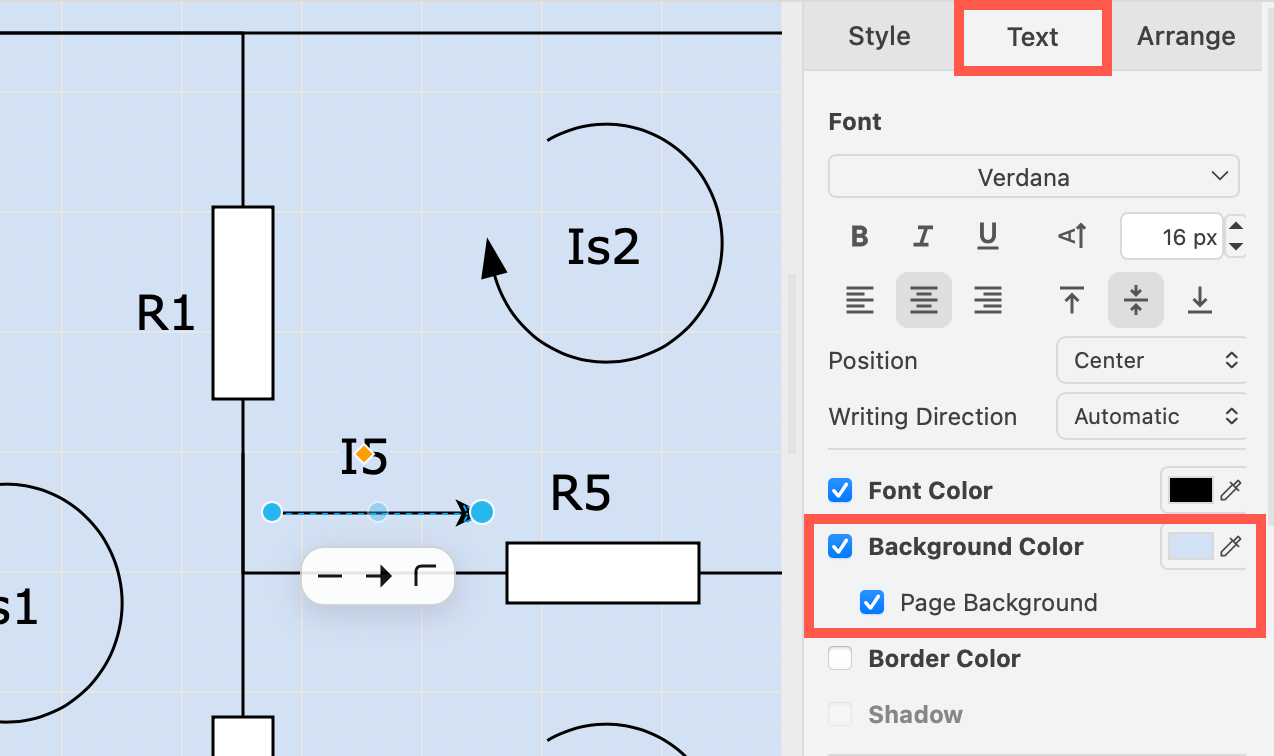
Labels with this enabled will also use the page background in dark mode.
Note: On gradient page backgrounds, this will use the first colour of the gradient.