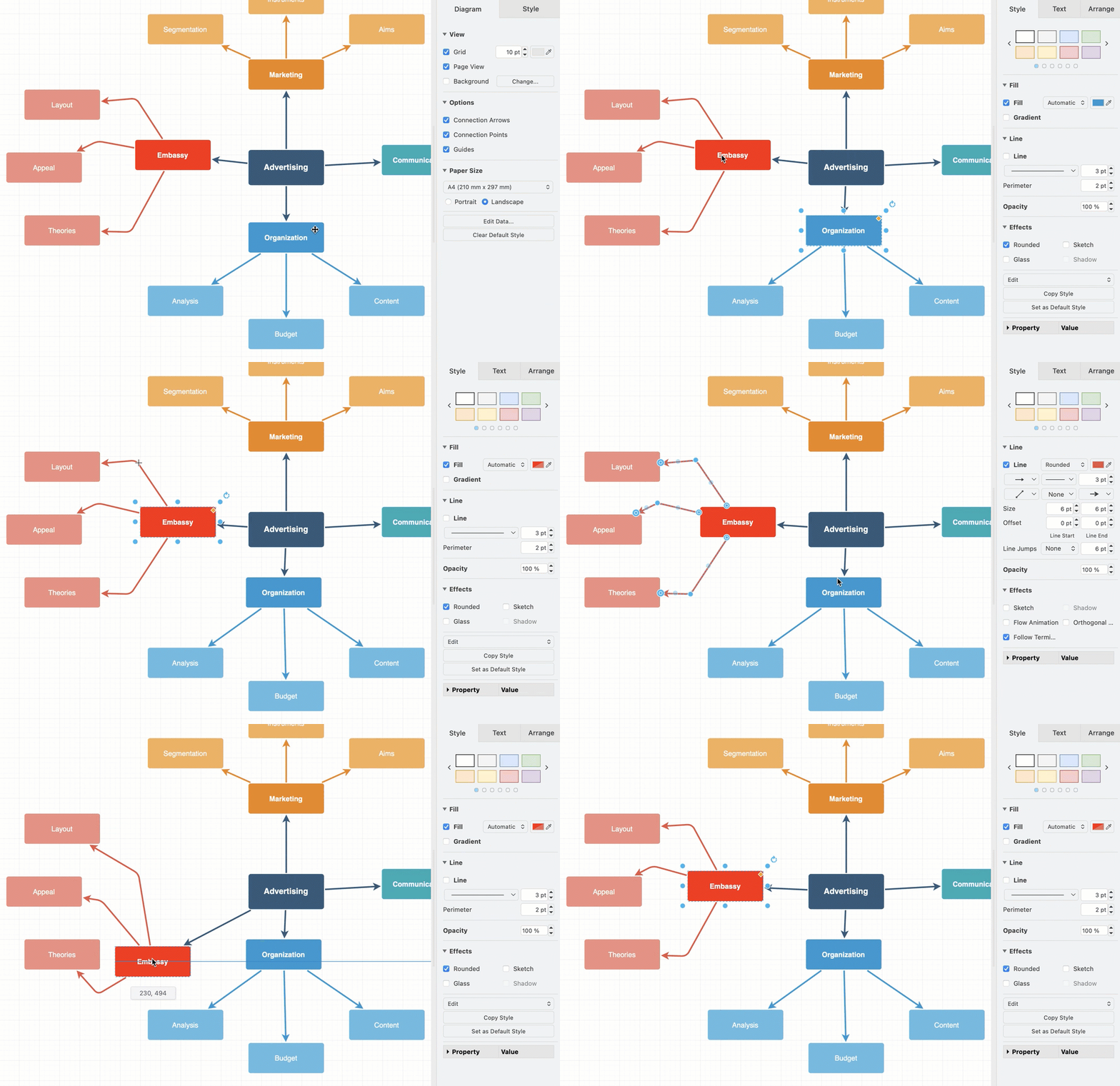
Route connectors around shapes automatically
draw.io can automatically route connectors around the shapes in your diagram. An auto-routed connector takes a path with right-angled bends that doesn't cross other shapes.
Auto-route a connector
- Select one or more connectors.
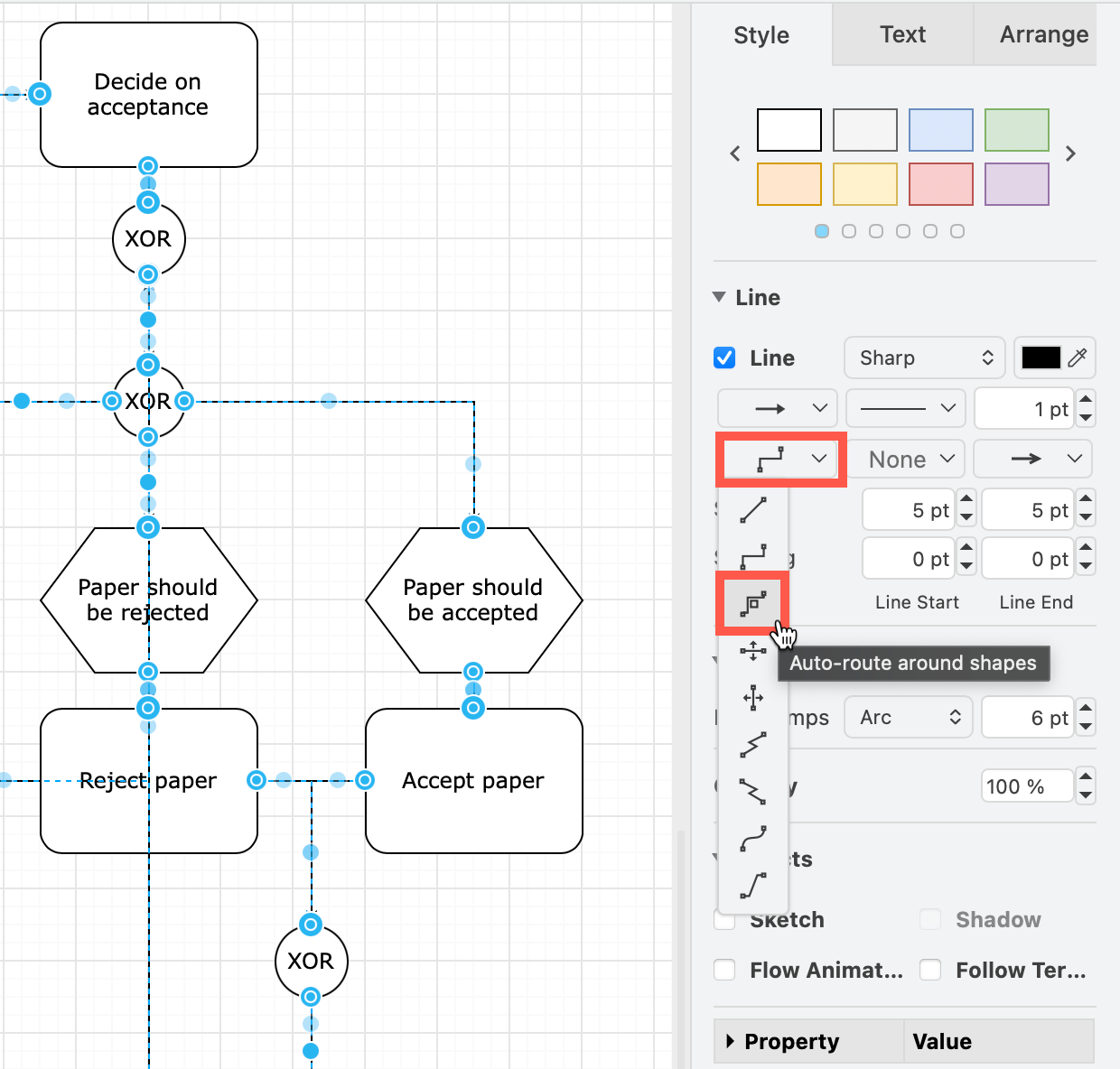
- Click Waypoints in the Style tab of the format panel.
- Select Auto-route around shapes.
Auto-routed connectors automatically find new paths whenever you:
- move or resize one of its connected shapes.
- move or add a shape on its path, or move a shape away from its path.
- connect it to a different shape.
Auto-routed connectors will also be routed again when you align, distribute or rotate shapes, change their position or size in the Arrange tab, or apply a layout from Arrange > Layout.
While dragging a shape to reposition it, you will see the new path of each auto-routed connector.
Tip: To auto-route all newly added connectors, select an auto-routed connector, then click Set as Default Style in the Style tab.
Turn auto-routing off
- Select the connector(s), then choose a different style from the the Waypoints list in the Style tab.
- Or drag the connector to add your own waypoints and manually change its path. The connector will remember the path you set and not be routed automatically from then onwards.
Note: Auto-routing has no effect on connectors inside containers that arranges contents automatically, such as a list shape or layout shape.
Apply the Orthogonal Routing layout to reroute once
Use the Orthogonal Routing layout to route connectors around shapes a single time or to change the Spacing of the connectors around the shapes. The shapes don't move on the drawing canvas as the connectors are re-routedß. The connectors will not be auto-routed afterwards.
- Select the connectors you want to route. All connectors will be routed if nothing is selected.
- Select Arrange > Layout > Orthogonal Routing from the menu.
- Enter the Spacing between the connectors and the shapes, then click OK.
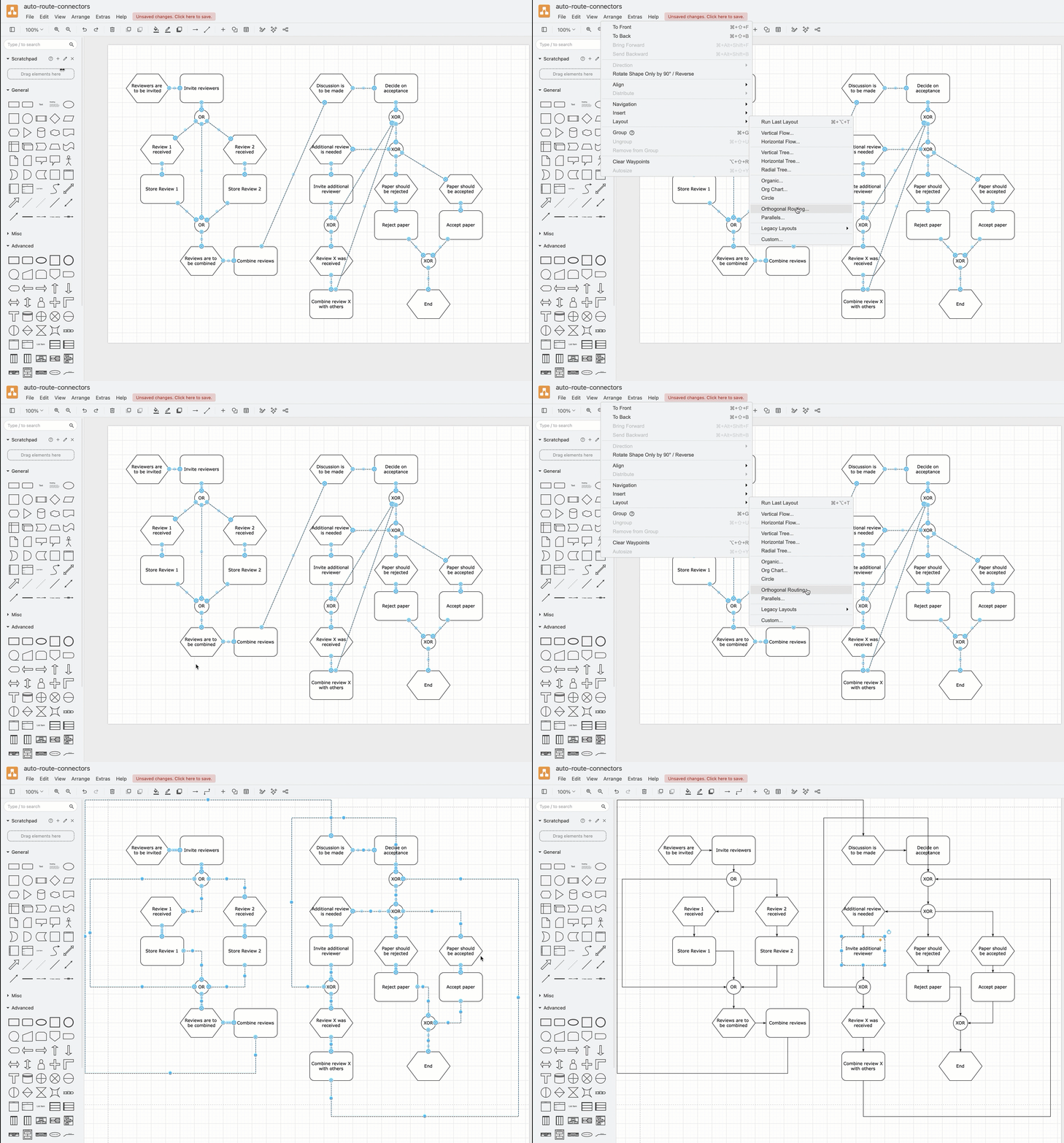
The connector style will be changed to orthogonal connectors with waypoints that go around the shapes using the spacing you specified.
Related
See the JSON layout specification for how to use the libavoid shorthand to auto-route connectors in a layout specification.
To move connectors with their manually set waypoints as you move shapes on the drawing canvas, enable the Follow Terminals checkbox in the Effects section in the Style tab of the format panel.